How to setup FSK telemetry reception with RTL-SDR Blog V4 and SDR#?
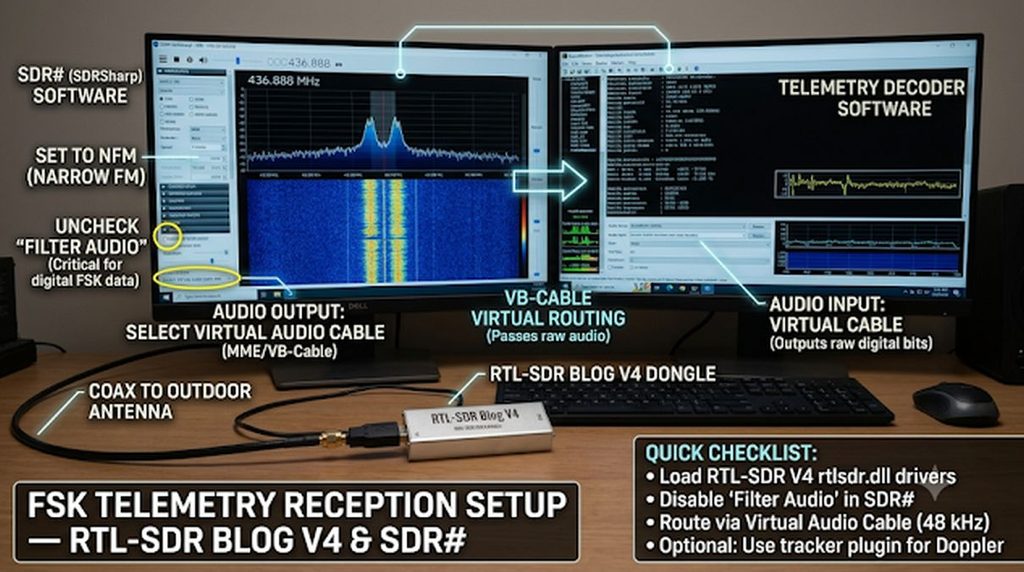
Setting up an RTL-SDR Blog V4 with SDR# (SDRSharp) for FSK telemetry reception requires installing the V4-specific rtlsdr.dll library, routing un-filtered discriminator audio through a virtual audio cable, and configuring SDR#’s demodulator so digital bit transitions pass without distortion.
1. Install RTL-SDR Blog V4 Drivers for SDR#
Because the RTL-SDR Blog V4 uses an R828D tuner with a built-in HF upconverter and notch filters, standard legacy Osmocom drivers will not tune it properly.
- Extract SDR#: Download the standard 32-bit
sdrsharp-x86.zippackage from Airspy and extract it to a writable folder (such asC:\SDRSharp), avoidingC:\Program Fileswhere Windows restricts write permissions. - Fetch the V4 DLL: Double-click
install-rtlsdr.batinside the extracted folder. Current releases of this script automatically pull the RTL-SDR Blog V4 branch ofrtlsdr.dll. (If using an older SDR# installation, download the latestRelease.zipfrom thertlsdrblog/rtl-sdr-blogGitHub repository and copy the x86 versions ofrtlsdr.dll,msvcr100.dll, andpthreadVC2.dllinto your SDR# folder, overwriting existing files.) - Install WinUSB via Zadig: Plug in the V4 dongle, right-click
zadig.exein the SDR# folder, and select Run as administrator. Click Options → List All Devices, select Bulk-In, Interface (Interface 0), ensure the target driver is set to WinUSB, and click Install/Replace Driver. - Source & Bias-Tee Configuration: Open
SDRSharp.exe, set Source to RTL-SDR USB, and click the Configure (gear) icon. Set the sample rate to 2.4 MSPS (or 1.024 MSPS for lower CPU load). If you are powering a masthead LNA on VHF/UHF, check Offset Tuning—on the RTL-SDR Blog V4, this toggle activates the 4.5 V bias tee.
2. Configure Virtual Audio Routing
SDR# demodulates the RF carrier into baseband audio, which must be passed cleanly to your FSK decoding software without acoustic microphone distortion.
- Install VB-Cable (or Virtual Audio Cable) and open Windows Sound Settings.
- Under both Playback (
CABLE Input) and Recording (CABLE Output), open Properties → Advanced and set the format to 16-bit, 48000 Hz (DVD Quality) with all audio enhancements disabled. - In SDR#’s Audio panel, set Output to [MME] CABLE Input (VB-Audio Virtual Cable).
3. Critical SDR# Demodulator Settings for FSK
Standard voice-oriented settings in SDR# will strip out low-frequency components and corrupt FSK bitstreams. Apply these exact parameters in the
Radio and
Audio panels:
- Modulation Mode: Select NFM (Narrow FM) for direct FM-FSK and GFSK telemetry beacons (such as 200 bps UNNE-1B or 800 bps HADES-L downlinks). (Select USB only if your decoder expects an SSB-demodulated audio-tone FSK stream.)
- Uncheck “Filter Audio” (Essential): In the Audio panel, uncheck Filter Audio. When checked, SDR# applies a ~300 Hz high-pass filter and FM de-emphasis curve that rounds off flat-topped digital pulses and causes high bit-error rates. Unchecking it outputs raw discriminator audio.
- Bandwidth: Set between 12,000 Hz and 15,000 Hz to encompass the carrier shift and baud rate (BW ≈ 2Δf + Rb) without admitting excess adjacent noise.
- Squelch: Leave unchecked (OFF) so weak telemetry frames are not clipped at the start of a packet burst.
- Manual RF Gain: In the Configure (gear) window, uncheck RTL AGC and Tuner AGC, then raise the RF Gain slider manually—typically to 32–42 dB on VHF/UHF—until the noise floor rises cleanly by 8–12 dB without overloading from nearby transmitters.
- AF Gain (Volume Slider): Set the top volume slider in SDR# to roughly 50%–65% so the signal reaches your decoder at mid-scale without clipping.
4. Doppler Tracking & Decoding
- Automated Doppler Correction: For Low Earth Orbit satellites on 70 cm (~436 MHz), Doppler shift spans roughly ± 10 kHz across an overhead pass—wide enough to push an FSK signal outside a 12 kHz NFM filter. Link Gpredict to SDR# via the DDE Tracker plugin (or use SatPC32) so the receiver VFO tracks the pass automatically.
- Live or Offline Decoding: Launch your telemetry decoder—such as UZ7HO SoundModem (including builds tailored for HADES-L/UNNE-1B), Dire Wolf, or gr-satellites—and select CABLE Output as its input device. For post-pass analysis, enable SDR#’s Audio Recorder (with Filter Audio unchecked) to capture a clean discriminator
.WAVfile for offline decoding tools like AMSAT-EA’s HADESx Generic Decoder.